
Installation
Step by step guide to install the STG ox_inventory redesign, which files to copy, the fxmanifest edit and the optional clothing items.
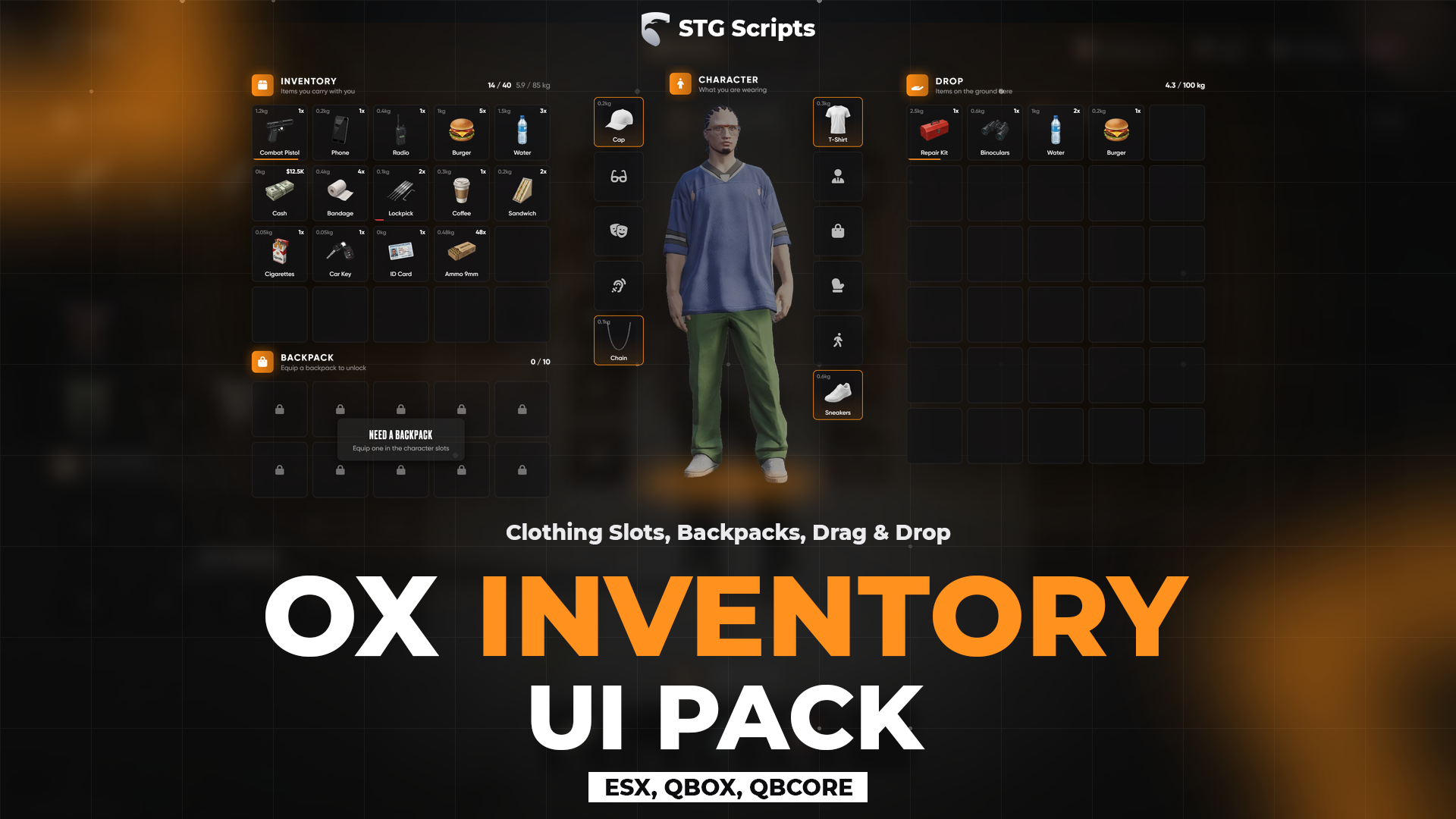
STG UI Pack: ox_inventory Redesign
stg-inventory is not a resource. Do not put it in [STG] and do not ensure it. Everything below goes inside your existing ox_inventory folder. Take five minutes and follow the steps in order.
What you downloaded
stg-inventory/
├── web/      → becomes ox_inventory/web/build
├── stg/      → becomes ox_inventory/stg
└── items/    → clothing items (optional, step 5)
Make a backup
Open your ox_inventory folder and copy two things somewhere safe (your desktop is fine):
- the folder
ox_inventory/web/build - the file
ox_inventory/fxmanifest.lua
With these two you can always go back to the original inventory.
Replace the web/build folder
- Delete the folder
ox_inventory/web/build. - Copy the
webfolder fromstg-inventoryintoox_inventory/web. - Rename that copied
webfolder tobuild.
You should now have ox_inventory/web/build/index.html. Do not touch ox_inventory/web/images, your item pictures live there.
ox_inventory/
└── web/
    ├── build/        ← the STG files
    │   ├── index.html
    │   ├── js/
    │   └── assets/
    └── images/       ← your item images, unchanged
Copy the stg folder
Copy the stg folder from stg-inventory straight into ox_inventory, so you get ox_inventory/stg/config.lua.
Edit ox_inventory/fxmanifest.lua
Open ox_inventory/fxmanifest.lua in a text editor. There are two changes.
a) The files list. Find these three lines:
    'web/build/index.html',
    'web/build/assets/*.js',
    'web/build/assets/*.css',
Replace them with these two lines:
    'web/build/**/*',
    'stg/logo.png',
b) The STG scripts. Find this line:
client_script 'init.lua'Right under it, paste:
client_scripts {
    'stg/locales/*.lua',
    'stg/config.lua',
    'stg/functions.lua',
    'stg/client.lua',
}

server_scripts {
    'stg/config.lua',
    'stg/functions.lua',
    'stg/server.lua',
    'stg/version.lua',
}
Save the file. When you are done, that part of the file looks like this:
client_script 'init.lua'

client_scripts {
    'stg/locales/*.lua',
    'stg/config.lua',
    'stg/functions.lua',
    'stg/client.lua',
}

server_scripts {
    'stg/config.lua',
    'stg/functions.lua',
    'stg/server.lua',
    'stg/version.lua',
}

ui_page 'web/build/index.html'

files {
    'client.lua',
    'server.lua',
    'locales/*.json',
    'web/build/**/*',
    'stg/logo.png',
    'web/images/*.png',
    -- the rest of your list stays as it was
}
Optional: clothes as items
Skip this step if you don't want clothes to be items.
- Open
stg-inventory/items/items.lua, select everything and copy it. - Open
ox_inventory/data/items.lua. Scroll to the very bottom, the file ends with a single}. - Paste the copied items above that last
}. - Copy every picture from
stg-inventory/items/imagesintoox_inventory/web/images.
With STG Appearance running, bought clothes now arrive as items.
Restart the server
Restart the whole server. Restarting only ox_inventory while players are online can leave them with an empty inventory window.
Check that it works
- Press your inventory key: the new design opens with your character in the middle.
- Click a character slot: the piece comes off.
- No
stg/...errors in the F8 or server console.
Common mistakes
| What you see | Fix |
|---|---|
| The old ox_inventory design | web/build still has the old files. Delete it and copy web again (step 2). |
| A black or empty inventory window | fxmanifest.lua still lists only web/build/assets/*.js. Use 'web/build/**/*' (step 4a). |
| Logo missing at the top left | 'stg/logo.png' is missing from files (step 4a). |
attempt to index a nil value (global 'Config') | The stg/... lines are missing or in the wrong order (step 4b). |
| Clothing items show a question mark | The pictures were not copied to ox_inventory/web/images (step 5). |
Going back to the original
Delete ox_inventory/web/build and ox_inventory/stg, put your backup build folder and fxmanifest.lua back, and restart.
Updating ox_inventory
An ox_inventory update replaces web/build and fxmanifest.lua. After updating, repeat steps 2 and 4.
Still having trouble?
Open a ticket on our Discord. Our team answers around 15 hours a day.