
Installation
Install STG Wallet System V2 on your FiveM server, with the SQL table and wallet items for ox_inventory, qb-inventory and ESX.
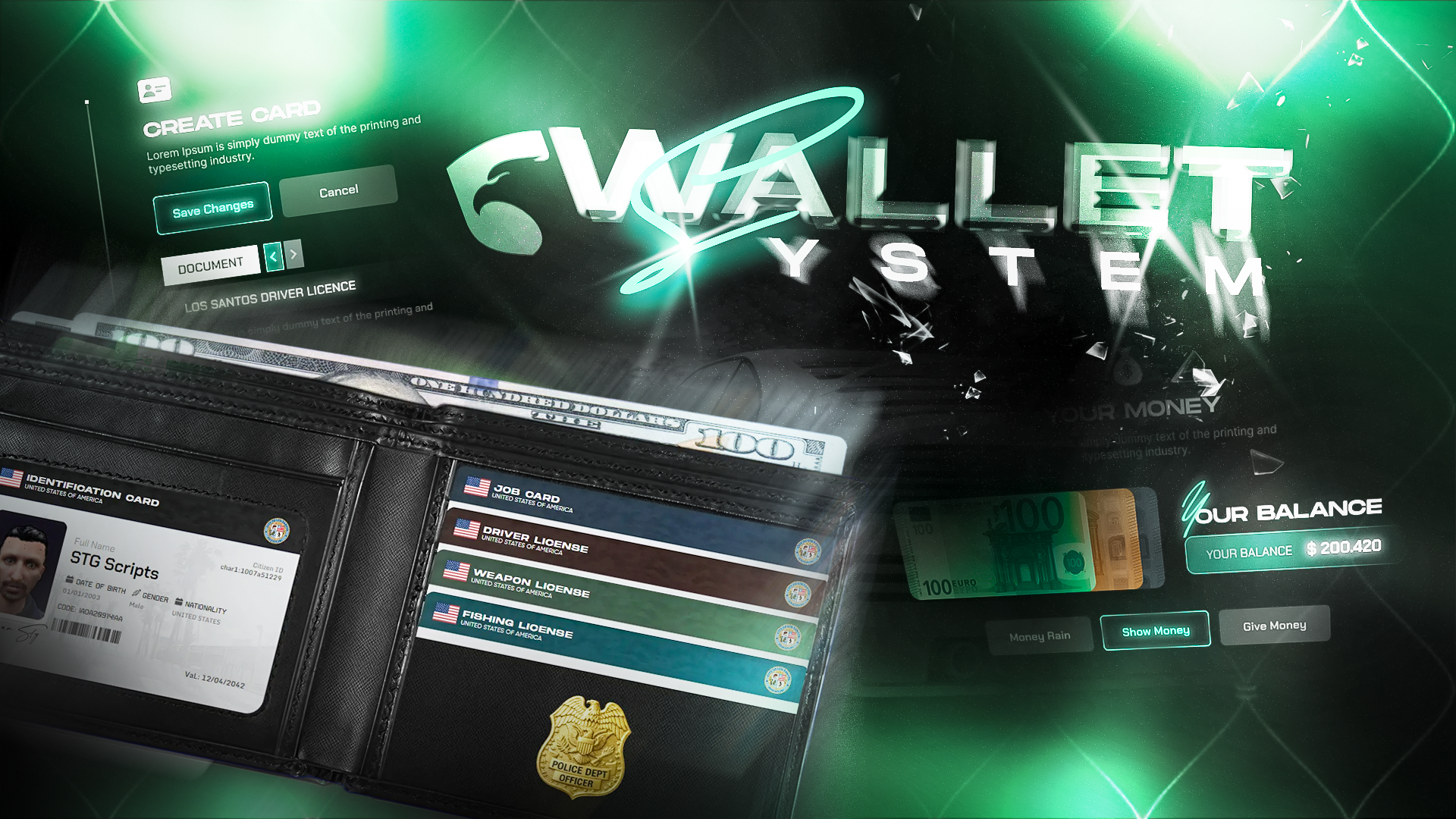
STG Wallet System V2
Download the script
Sign in to the Cfx.re portal with the account you used at checkout and download stg-walletv2 from Granted Assets.
Move the resource
Extract the zip and place the stg-walletv2 folder inside the [STG] category folder in your resources directory.
resources/
└── [STG]/
    ├── stg_lib/
    └── stg-walletv2/
Install the dependencies
Wallet System V2 needs ox_lib, oxmysql and stg_lib version 1.0.3 or newer. On ESX it also reads licenses from esx_license. Skip this step if your server already runs them.
Import the SQL
Run stg-walletv2/[SETUP]/stg_wallet.sql on your database. It creates the stg_wallet table, which stores the custom cards you design in the admin panel.
Add the wallet items
Each name in Config.WalletItems is a usable wallet. Add the three default items to your inventory:
Add to ox_inventory/data/items.lua:
['black_wallet'] = {
    label = 'Wallet',
    weight = 0,
    stack = false,
    close = true,
    client = {
        event = 'stg-walletv2:openWallet',
        color = 'black_wallet'
    }
},
['purple_wallet'] = {
    label = 'Wallet',
    weight = 0,
    stack = false,
    close = true,
    client = {
        event = 'stg-walletv2:openWallet',
        color = 'purple_wallet'
    }
},
['brown_wallet'] = {
    label = 'Wallet',
    weight = 0,
    stack = false,
    close = true,
    client = {
        event = 'stg-walletv2:openWallet',
        color = 'brown_wallet'
    }
},
client.color picks the wallet image, so it must match the item name. Copy the images from stg-walletv2/[SETUP]/item-images/ to ox_inventory/web/images/.
Add to qb-core/shared/items.lua:
black_wallet = { name = 'black_wallet', label = 'Wallet', weight = 0, type = 'item', image = 'black_wallet.png', unique = true, useable = true, shouldClose = true, description = 'Wallet System' },
purple_wallet = { name = 'purple_wallet', label = 'Wallet', weight = 0, type = 'item', image = 'purple_wallet.png', unique = true, useable = true, shouldClose = true, description = 'Wallet System' },
brown_wallet = { name = 'brown_wallet', label = 'Wallet', weight = 0, type = 'item', image = 'brown_wallet.png', unique = true, useable = true, shouldClose = true, description = 'Wallet System' },
Copy the images from stg-walletv2/[SETUP]/item-images/ to qb-inventory/html/images/.
Run on your database:
INSERT INTO items (name, label) VALUES
    ('black_wallet', 'Wallet'),
    ('brown_wallet', 'Wallet'),
    ('purple_wallet', 'Wallet');
If your ESX server uses ox_inventory, follow the ox_inventory tab instead.
Restart your inventory after adding the items.
Start the script
Make sure [STG] starts after your framework, oxmysql and ox_lib in server.cfg:
ensure oxmysql
ensure ox_lib
# your framework: es_extended, qb-core or qbx_core
ensure stg_lib
ensure [STG]
Then restart the whole server.
Keep the folder name stg-walletv2. With any other name the console prints a rename warning every second, and the exports other scripts call (exports['stg-walletv2']) stop working.
Nothing happens or the console shows an error? See Common Errors.
Next steps
Configuration
Cards, money actions, admin panel and license control
Exports
Give licenses and open the wallet from other scripts
Dependencies
What needs to start before Wallet System V2
Still having trouble?
Open a ticket on our Discord. Our team answers around 15 hours a day.
Wallet System V2
An animated wallet item with ID, job, driver and weapon license cards, cash actions, custom cards from an admin panel and a license menu for police.
Configuration
Every option in STG Wallet System V2 config.lua, from wallet items, keybind and money actions to ID cards, licenses, the admin panel and license control.